A rule-based proxy client for iPhone / iPad. Verify the App Store listing first, then import your existing configuration. Learn about rule-based routing and the limits of the one-time purchase.
Check the App Store listing for system requirements and purchase availability.
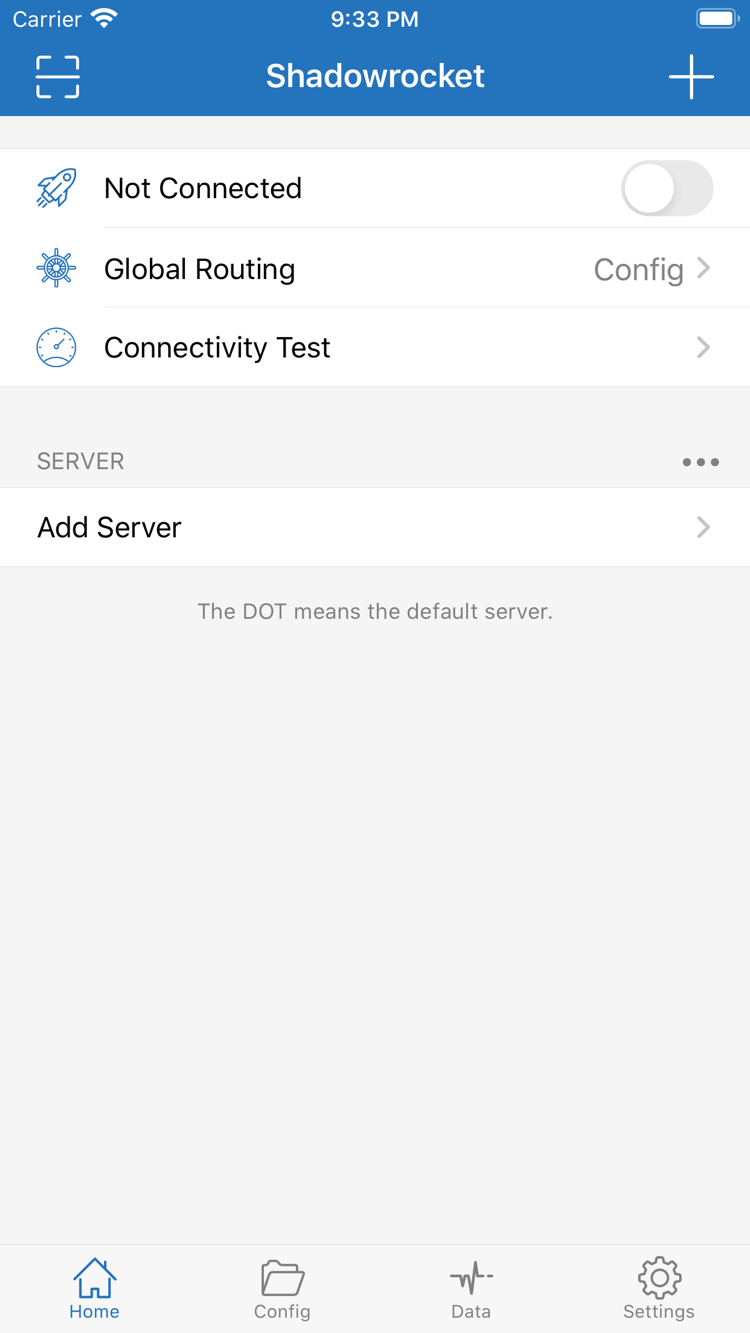
Shadowrocket · Official Home screenshot
Shadowrocket Settings & Core Features
Understand the difference between connection details, configuration files, and routing policies before choosing what to adjust. The examples below are documentation, not screenshots of the app.
Rules are checked from top to bottom; FINAL handles unmatched requests
After selecting Config under Global Routing, requests follow the rules in the active configuration. Rules are generally checked from top to bottom, and the matching rule determines the policy, so specific domain conditions should come before broader ones. PROXY sends a request through the selected proxy or policy, DIRECT connects without a proxy, and REJECT blocks the matching request. Before editing Config, keep the original file and change one group of rules at a time. Then check whether actual requests match the expected rules. Put FINAL at the end to handle requests that match none of the earlier conditions.
This example illustrates syntax and rule order only. GEOIP,CN,DIRECT matches by IP geolocation; it does not identify every Chinese-language website.
Treat On Demand and the connection switch separately
On Demand triggers connections when specified conditions are met; it does not guarantee that a server is available. Before reviewing related options in Settings, confirm that your existing server details work by connecting manually, then adjust trigger conditions one at a time. If a connection starts again after switching networks, check whether a relevant condition is enabled instead of repeatedly toggling the switch on Home. To pause the connection, check On Demand as well. Background activity and battery use also depend on request volume, network stability, and system behavior; use the system battery statistics to assess them.
Settings
On Demand
Home
Type must match the existing server
Shadowrocket supports multiple connection protocols. To add a server manually, choose the Type under Add Server that matches your existing server, then enter the required Host, Port, and authentication details. Fields are not interchangeable between protocols; changing only a name or port does not convert a connection to another protocol. When importing, check the parsed type and key details as well. A protocol alone does not guarantee connectivity: the result depends on server settings, valid connection details, and current network conditions.
Shadowsocks
VMess
VLESS
Trojan
Hysteria2
WireGuard
Subscribe imports existing content
If you already have a subscription link, add it by selecting Subscribe under Add Server, then check the parsed server list after saving. Updating a subscription reloads the content returned by its link, so manually edited entries may be affected. Note any settings you need to keep before updating. If the list is empty after importing, first make sure you copied the complete subscription URL rather than an account webpage, then check that the link is valid and your network is working. Subscription credentials are sensitive; redact them in screenshots, support requests, and copied logs.
Config and the server list serve different purposes
Config manages rules and related network settings; the server list stores the details needed to connect. Importing one does not mean the other is ready. In Config, first confirm which file is active, then review sections such as General and Rule. Keep a recoverable copy before making changes so you can identify the cause if editing DNS, rules, and policies at the same time causes problems. If you use iCloud sync, check the sync status on each device and confirm which file is selected. Syncing a configuration does not guarantee that server credentials are complete, and it does not replace restoring an App Store purchase.
General
Rule
Hosts
iCloud
Test the connection first, then inspect individual requests
Connectivity Test can help check how the selected server responds using the current test method, but a successful test does not mean every destination will work. If only some pages have problems, check the relevant diagnostics in Settings under Diagnostics, then use request logs to see which rule and policy were applied. Traffic statistics in Data can help track activity, but they do not show service validity or billing status. During troubleshooting, note your network, the current Global Routing selection, and any error message. Reproduce the issue once, then change one thing at a time.
Connectivity Test
Diagnostics
Data
Global Routing:Config / Proxy / Direct
Config mode uses the active configuration to determine where requests go; Proxy mode sends requests through the selected proxy; Direct mode connects directly. These mode names serve a different purpose from the uppercase policy keywords used in rules, so check them separately. To verify that rules are working, select Config first and review the actual match records. Repeatedly changing routing rules while in Proxy mode cannot verify how Config matches requests.
Checking one layer at a time makes issues easier to pinpoint: verify the server details, confirm that a connection can be established, then check which policy handled the target request. If a destination also fails in Direct mode, check the service, current network, and DNS rather than assuming the entire client is broken because one page will not load. See the user tutorial for complete steps and how to revert changes.
Devices & App Store
Getting Shadowrocket on iPhone / iPad
Shadowrocket is available only through the App Store. Before installing, check compatibility, the storefront associated with your account, and the product listing. App purchases and existing connection settings are managed separately.
iPhone
Verify the three authenticity details on the App Store listing before purchasing and installing. Check the listing for system requirements. When you first open the app, you will need your own existing server or subscription details; purchasing the app does not add them automatically.
The first time you connect, iOS may ask for permission to add a VPN configuration. This system authorization manages network connections. Confirm that you initiated the action in the app, then follow the system prompts. Approval means the configuration is available to the system; it does not confirm that the remote server is reachable.
On the App Store, sign in with the Apple ID used for the original purchase and look for Shadowrocket in your purchased apps. Check the App Store listing for eligibility across iPhone and iPad, system requirements, and device compatibility.
A larger display may change the layout of lists and editing areas, but Add Server, Config, and Settings serve the same purposes. After reinstalling, check the active configuration, server details, and connection authorization. Reinstalling the app does not necessarily restore all local data.
Have your existing subscription or server details ready, then follow these three steps. Make only the changes needed to verify a basic connection; once it works, adjust rules, DNS, and On Demand.
01
Add Server: add a server or use Subscribe
To add a server manually, choose a Type that matches your existing details, then enter the server address, port, and required authentication fields for that protocol. To use an existing subscription, select Subscribe and paste the complete link. After saving, check that the expected content appears in the list. Do not use the subscription name instead of its URL, or include spaces, line breaks, or extra text when pasting. If the list is empty, resolve the import issue before changing the connection switch.
Check the key details before and after saving. A server name is only a label for identification; it does not confirm that the address, protocol, or credentials are correct. If you import with Scan QR Code, review the decoded details too. Keep QR codes and links containing credentials private.
02
Global Routing: choose a routing mode
To route traffic according to a configuration, select Config and confirm that the expected file is active in Config. To check basic connectivity through the selected proxy, you can temporarily use Proxy once you understand its impact. Direct connects without a proxy; it is not a required step after importing a server. Changing modes affects how requests are handled; it does not fix expired credentials, missing fields, or server-side errors.
Note the original selection before testing, then restore the mode you need when you are done. In custom rule examples, PROXY must refer to a valid policy, and FINAL must suit the intended use. Do not copy rule text without checking the policy definitions in the active configuration.
03
Home: connect and verify actual requests
Select the server you want to use, turn on the connection switch, and follow the system prompts to authorize the VPN configuration. Then run Connectivity Test and open a specific destination to check its request. The system showing a connected status, the test receiving a response, and the destination loading are three different outcomes. Success in one does not replace checking the others.
If the connection fails, note the error message, current network, selected server, and Global Routing mode. If only some destinations have problems, check rule matches and DNS first. If all destinations fail, start by checking the server details and basic connectivity. Change one item at a time and keep the original working configuration so you can compare and revert.
Verify the app, then check what the purchase includes
Shadowrocket is a closed-source commercial app. This is the Shadowrocket website and official manual. Refer to the App Store product page for availability and purchase details, and to options you can verify in the app for setup instructions.
01 / Three authenticity checks
Check the developer, official icon, and app ID together
On the App Store product page, check the developer name, Shadow Launch Technology Limited. Compare the listing with the official app icon shown in this site's header, then confirm that the product page URL contains id932747118, which corresponds to app ID 932747118. A name or similar-looking icon in search results is not enough to verify the app. Open the product page before purchasing; do not mistake another search result for the app you want.
The app name, icon, and developer details should all match. The description, compatibility details, and purchase button shown in the store belong to the same product page; do not combine information from different search results. For step-by-step checks, see the authenticity check guide.
02 / One-time purchase
The client purchase is not a service plan
Buying Shadowrocket pays for use of the client. The US storefront reference price is $2.99; the App Store listing shows the actual amount, currency, and purchase conditions. After installing, you still need your own existing subscription or server details to set up a connection. The app purchase record and the validity, data allowance, and status of a connection service are managed separately and cannot replace one another.
This site does not provide, sell, or recommend nodes or subscriptions. Import instructions explain how to add your existing details to the app, check fields, and troubleshoot parsing issues. If details for a service you already use change, verify them with their actual source. Buying the client again does not affect whether existing connection details are valid.
03 / App Store Availability
Can't find it? Check your current storefront first
App Store availability may vary with the storefront associated with your account, device compatibility, and access conditions. The system language and storefront region are separate settings. Opening a product link for a particular storefront does not change the storefront associated with your account. Check the country or region in your App Store account, then review any message on the product page. An empty search result alone does not mean the app has been removed.
Before changing your account region, review the conditions Apple lists in account settings and check items such as your balance, existing subscriptions, and payment method. Do not change account settings without considering the consequences just to install the app. Storefront availability varies by account; see the complete guide to getting the app from the App Store for steps to check.
04 / Purchases & Updates
Find your purchase when changing devices; update through the App Store
When switching devices or reinstalling, first make sure the App Store is signed in with the Apple ID used for the original purchase, then look for Shadowrocket in your purchased apps. The same purchase may be used on eligible iPhone and iPad devices; check the store listing for details. If a price is still shown, check the account and original purchase record first rather than paying again as the first step to restore the app.
Check the product page and Family Sharing settings to see whether Family Sharing applies; it is not guaranteed to work for every account. App Store manages app updates, which you can set to install automatically in system settings or check for manually in the store. Restoring a purchase, syncing configuration, and restoring server credentials are separate tasks. Save any configuration you need before updating or reinstalling.
Once the basic connection works, choose a topic that matches the issue. Keep the original details when changing rules or updating subscriptions. Reproduce the problem first, then test one change at a time.
If the list is empty after importing a subscription or an update fails, check the link format, the provider's service status, your network, and the timing of the update to identify where the problem lies.
Learn how the REJECT policy blocks requests at the rule level, what it can and cannot block, why false positives can break pages, and how to troubleshoot or revert changes.
Learn how rules are checked from top to bottom and stop at the first match, how to order DOMAIN-SUFFIX, IP-CIDR, and GEOIP rules, and how to choose a FINAL fallback policy.