- Official Manual · Setup Guide
- Add → Choose a Mode → Connect → Verify
Shadowrocket Setup Guide
Use your own subscription or server details to make your first connection. Start with one clear setup path, then adjust rules and automatic connection settings.
Read the steps in order and check each one as you go. Screenshots are official App Store assets; the app installed on your device may look different, and fields vary by Type.
Add Server: Add a Server or Import a Subscription
A subscription link and individual server details are two different ways to add a connection. Use whichever you already have.
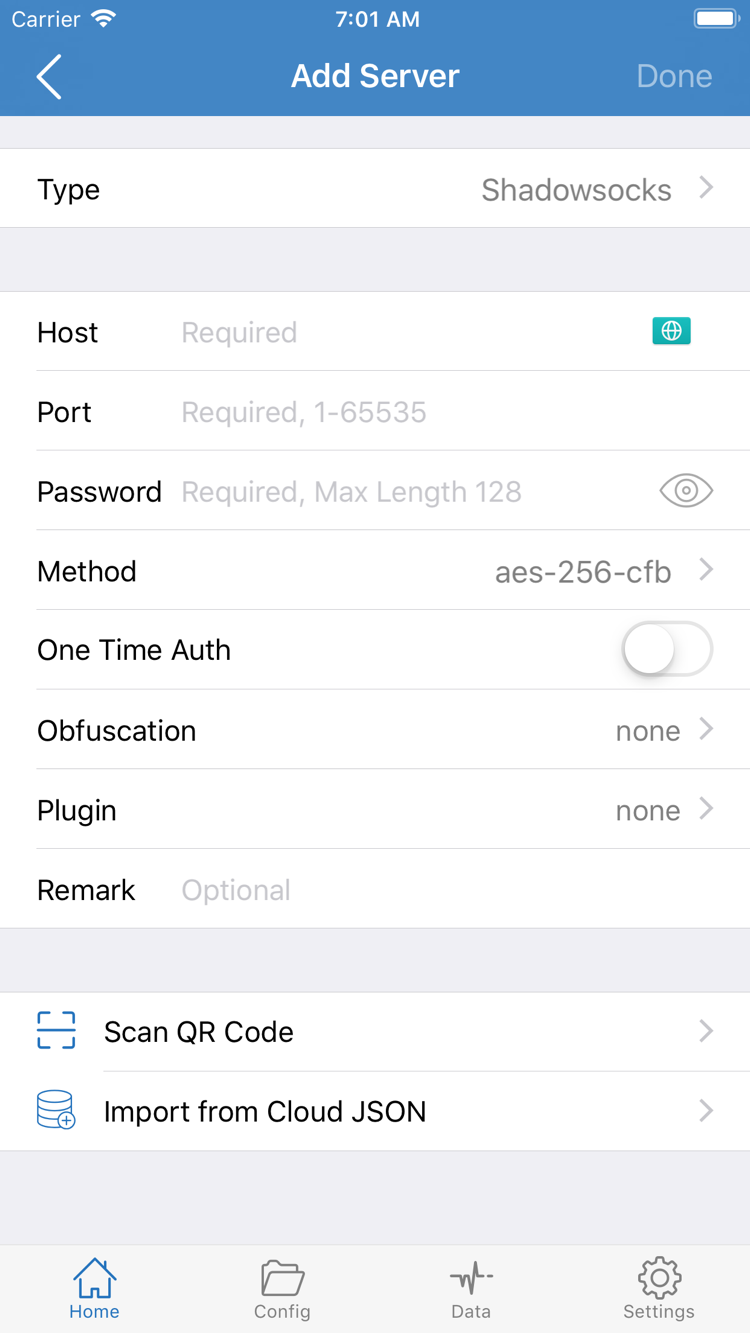
Open Shadowrocket, go to Home, and find Add Server or the add option. First identify what you have: a subscription link retrieves a list of servers, while individual server details require you to enter the protocol and connection fields manually. Do not paste an entire subscription link into Host, or mistake a server hostname for a subscription URL.
Have a Subscription Link? Choose Subscribe
After opening Add Server, tap Type and choose Subscribe. Paste your complete subscription link into the URL field and add a note if helpful. Check for leading or trailing spaces, line breaks, and links truncated by a messaging app. The path and parameters are part of the URL; do not remove or change them to shorten the address.
Save and return to Home, then wait for the subscription to load. To refresh it, use the update action for that subscription. Confirm that selectable server entries appear in the list—not just a subscription name. If the list is still empty after updating, check the link and subscription status before proceeding; there is no need to keep toggling the connection switch. Check the validity period, returned content, and access permissions with the source of your existing service details.
Have Individual Server Details? Enter Each Field
To add a server manually, select the matching protocol under Type, then enter Host, Port, and the required authentication fields. For example, selecting Shadowsocks displays fields such as Password and Method. Other protocols may use different fields, so do not reuse the same set of parameters. Host is usually a hostname or IP address, and Port is the port number. Check your existing server details for any additional parameters.
If you have an importable QR code, use Scan QR Code. Import from Cloud JSON is for content in the format accepted by that option; it is not a general-purpose importer for arbitrary links. After importing, check the protocol, address, port, and authentication details. Save, return to Home, select the server you want to use in the SERVER group, and continue to the next step.
Global Routing: Choose a Routing Mode
Adding a server only saves the connection details. How requests are handled also depends on the selected mode and active configuration.
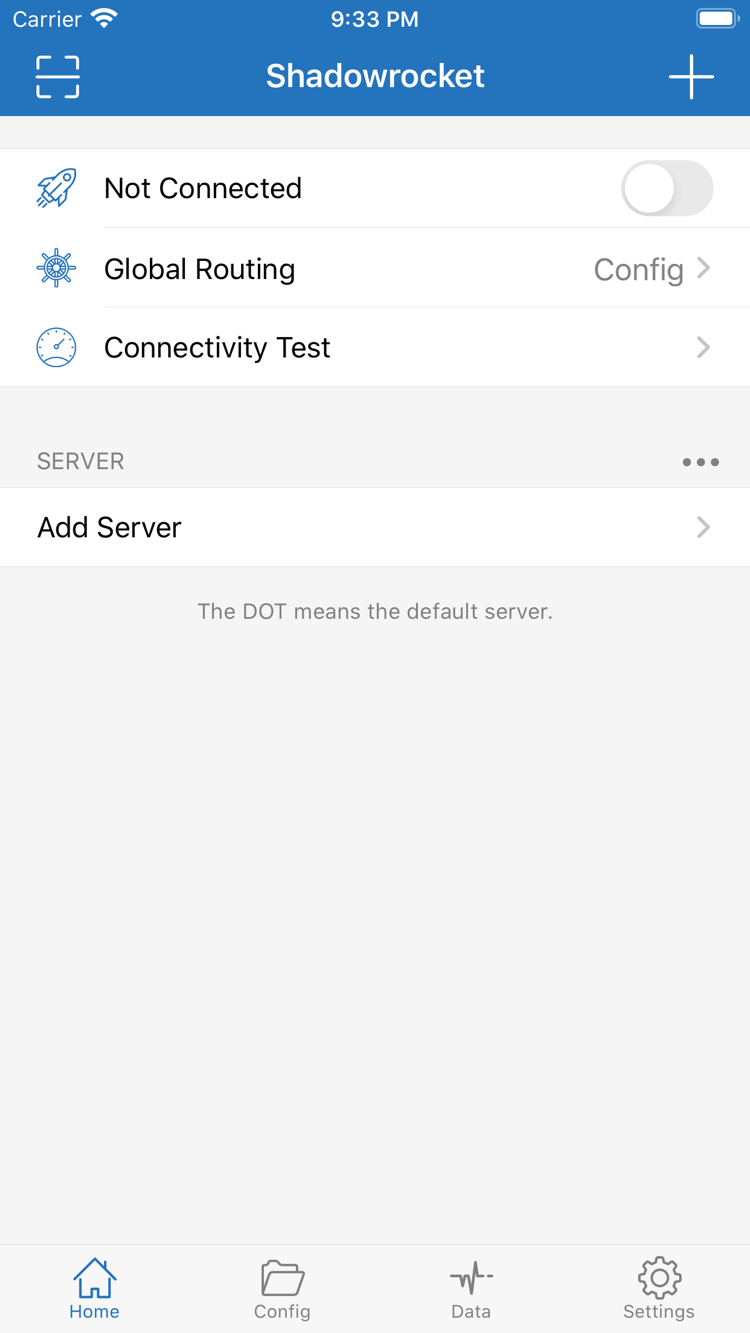
Return to Home and tap Global Routing. The three modes are Config, Proxy, and Direct. Before choosing one, decide what you need: follow the rules for everyday use, check the selected server, or temporarily test a direct connection. A server appearing in the list does not mean every request will use it.
Config: Follow the Active Rules
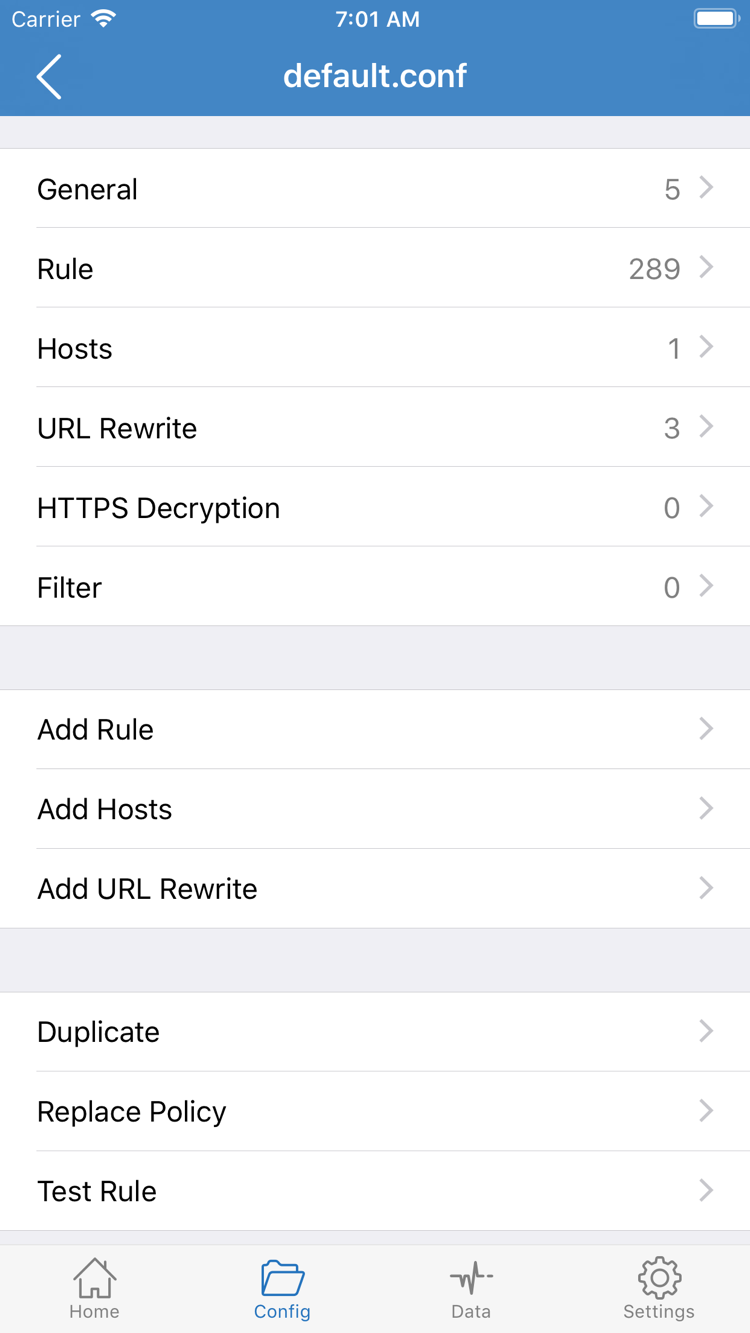
With Config selected, requests are handled according to the rules in the active configuration. Open the Config tab at the bottom and confirm which configuration file is active. To inspect its rules, open that file in the editor and find Rule. This is separate from Global Routing on Home: the former manages configuration content, while the latter determines whether to use it.
Rules are usually evaluated from top to bottom, and the matching rule determines the policy. DIRECT means a direct connection, PROXY applies the proxy policy, and REJECT blocks the request. FINAL applies when none of the preceding rules match. A direct request in Config is not necessarily a problem; first check which rule matched. When getting started, you do not need to edit General, Hosts, URL Rewrite, or HTTPS Decryption—none is required for a basic connection.
Proxy and Direct: Choose a Specific Route
Proxy uses the proxy route. It can reduce rule-related variables during troubleshooting, but still requires valid server details; switching to this mode will not fix an address, authentication, or server-status issue. Direct uses a direct connection and can help check whether the current network can reach a destination. It does not confirm that the selected proxy server is working.
If your existing configuration specifies Config, follow its instructions. To check whether a problem is caused by rules, temporarily switch to Proxy and test the same destination, then restore the original mode. Keep a copy of the configuration before changing rules; this guide does not require you to create complex rules. For more on DOMAIN-SUFFIX, GEOIP, and FINAL, see rule routing and troubleshooting FAQs.
Home: Turn On the Connection and Approve VPN Access
Check the server and Global Routing mode before using the switch at the top.
Return to Home and confirm that the server you want to use is selected under SERVER. Check that Global Routing shows the intended mode. If you imported details but have not selected a server, select one first. If the subscription list is still empty, go back to Step 1; the connection switch does not refresh subscriptions.
Turn on the connection switch at the top of the screen. The first time you connect, the system may ask for permission to add a VPN configuration. This permission allows the app to establish a system network connection. Confirm that the prompt relates to your current action, allow it as requested, and complete any device authentication. Then return to Shadowrocket. Do not confuse this system prompt with the server Password: device authentication and server authentication are separate steps.
After returning to Home, check whether the top of the screen still shows Not Connected and whether the switch and status remain connected. If the switch turns off immediately, note the exact message shown by the app or system, then check VPN authorization and your existing server details. Rapidly toggling the switch makes it harder to determine what happened; complete one action and wait for the status to settle before continuing.
On iPad, screen layout and system prompts may differ from the screenshots, but the sequence is the same: select a server, confirm the mode, connect, and approve the system prompt. A VPN status only indicates that a system connection has been established. It does not by itself confirm that the remote server is working or that every app request is using the proxy. Keep your current settings and continue to the next step.
Connectivity Test: Run a Test, Then Verify Your Use Case
Check the connection status, test result, and actual access separately to identify where the issue occurs.
On Home, find Connectivity Test and run the test. First check whether it returns a result. A failed test is a clue for further troubleshooting, not proof that every request will fail. A successful test only means there was a response under those test conditions; it does not replace testing the app or page you actually need. The test method or destination may differ from your everyday use, so do not rebuild your entire configuration based on a single result.
Next, open the app or page you want to use and send a new request—for example, reload a page or repeat the action that failed. Previously cached content cannot confirm that a new network request succeeded. If the issue affects only one destination, note what you did and when. If all destinations fail, check the overall connection and server details.
With Config selected, use the active configuration to determine how the request should be routed. If the app's available request logs show a match for DIRECT, first check whether that is what the rule calls for. If the request matched REJECT, check for an unintended block. To compare, temporarily switch to Proxy, repeat the same request, then restore the original mode. Different results in Config and Proxy are a reason to inspect the rules, not to delete them all.
- Connection established: Home shows an active connection, and the switch stays on.
- Test result understood: Note the Connectivity Test result and the method used.
- Real request succeeds: The target page or app completes a new network operation.
- Route as expected: The Global Routing mode and rules send traffic where you intend.
Once these checks are complete, use the current selection as your starting point for everyday use. If only some checks pass, avoid the vague note “not connecting.” Be specific: “switch turns off,” “test fails but the page loads,” or “Proxy works, Config does not.” These descriptions point to the next troubleshooting step and help avoid unnecessary changes.
Settings: Troubleshoot in Order, Changing One Thing at a Time
Start with the earliest step that failed. Change one variable at a time and keep a configuration you can restore.
Import Returns Nothing or No Selectable Server Appears
Return to the subscription settings and check that Type is set to Subscribe, the URL is complete, and the update has finished. If the response is an informational web page, login page, or error, the app cannot treat it as a valid server list. Check the status of your existing subscription before updating. Changing Global Routing will not fix a parsing failure: the mode controls request routing, not subscription contents.
The Switch Turns Off or There Is No Access After Connecting
First distinguish system authorization from server communication. If the switch will not stay on, check whether the VPN configuration was approved and whether the system shows a restriction or specific error. If the switch stays on but access fails, check the selected server details. Compare Type, Host, Port, and authentication fields, paying close attention to spaces, a mismatched Method, or missing protocol parameters. Do not replace the encryption method or port based on guesswork; match the details to your own server information.
Test Result and Page Access Do Not Match
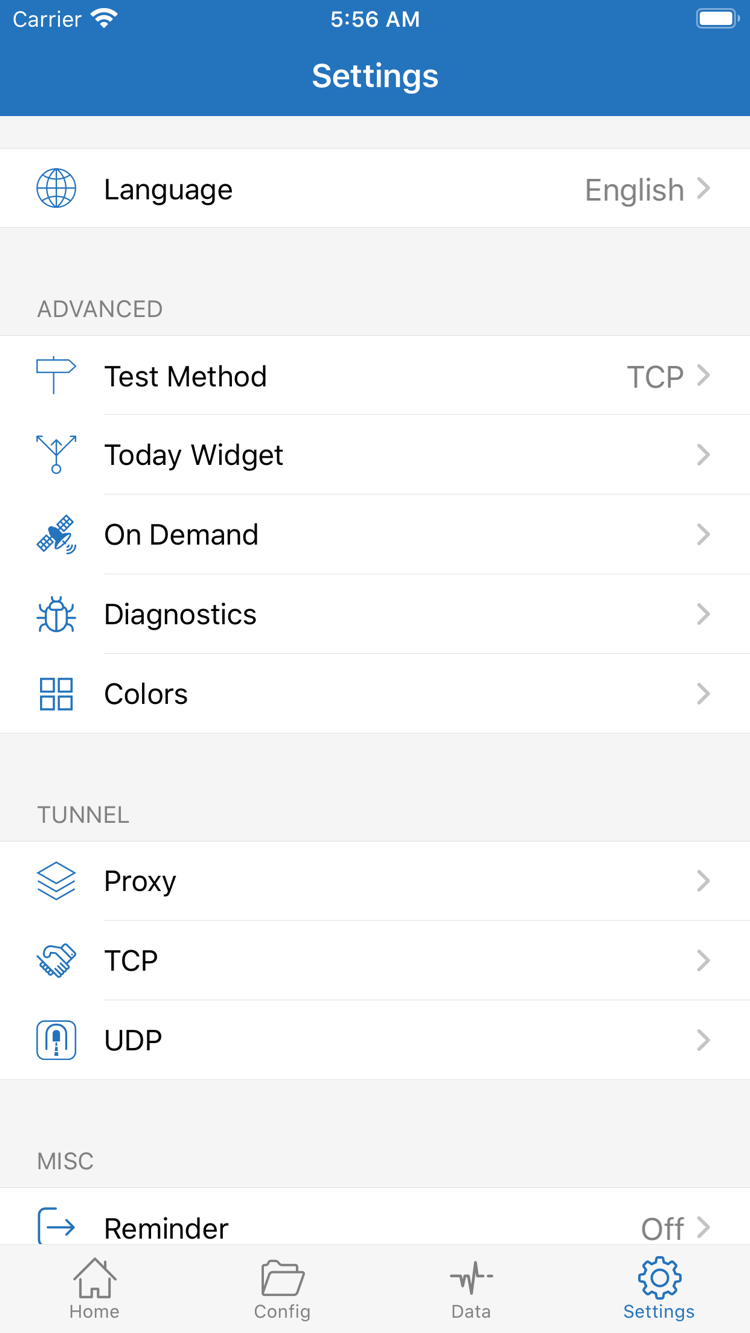
Open Settings and check Test Method to see how the test was run. Different methods do not cover exactly the same conditions, so their results are not directly comparable. Return to Home and check Global Routing and the active configuration. If only Config fails, start by checking Rule, FINAL, and the relevant name-resolution settings. DNS can involve several interacting details; first read Shadowrocket DNS settings and connection troubleshooting rather than changing multiple DNS options at once.
Consider On Demand Only After the Basic Connection Works
On Demand starts connections when specified conditions are met; it cannot fix incorrect server details. For initial troubleshooting, use the manual switch to avoid mistaking an automatic connection for a setting that did not save. Once the basic connection is verified, configure On Demand in Settings if needed, then test its trigger conditions. Adjust settings such as Proxy, TCP, and UDP only when you have a specific reason, rather than enabling everything at once.
If you still cannot identify the issue, check the available diagnostic information in Diagnostics. Note which step failed, the mode in use, and the exact error. Remove subscription links, authentication details, and other sensitive information before sharing logs. For purchase, system requirements, and restoring purchases, see the App Store installation guide. For more on connections and rules, see the FAQs.